Table of Contents
Sample Processing Instructions
Table 1 - Tube Type and Processing
SAF Order Request Forms
The revamped SAF Order Request Form will allow users to request blood, fluid, tissue and other kits along with the ability to add processing instructions for each.
In addition to this, users can now clone and revise existing orders.
Creating a New Order
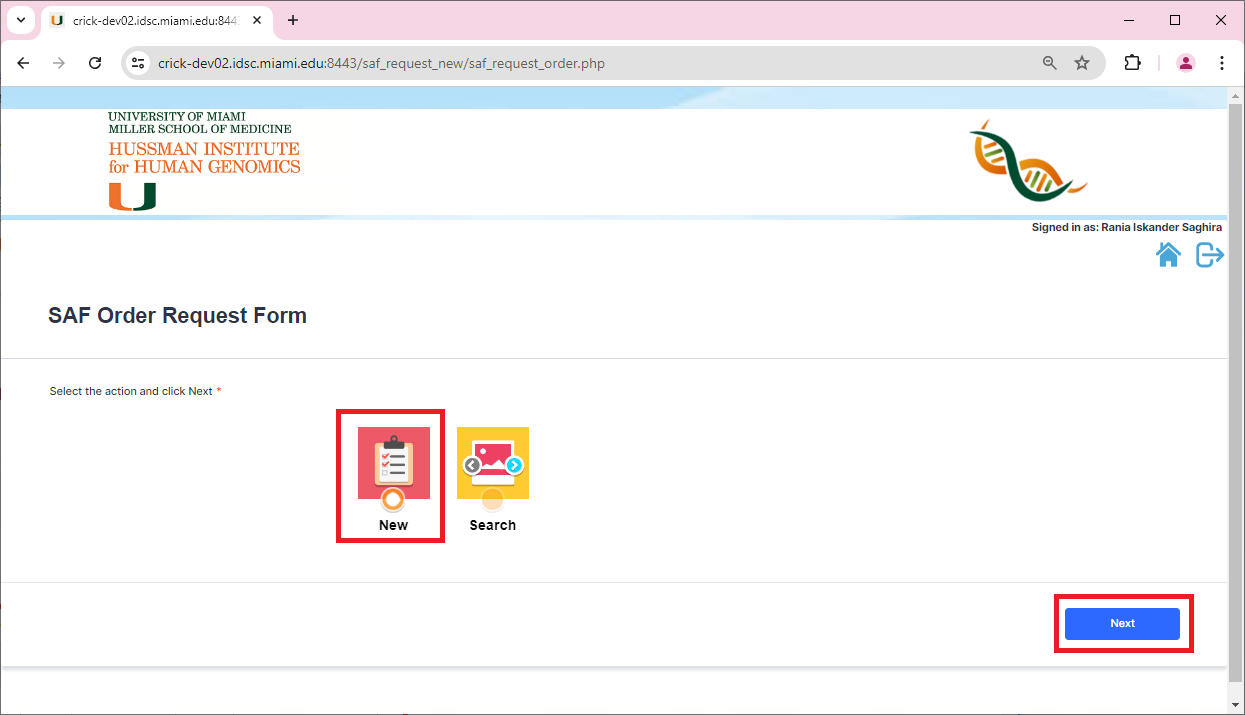
Select New, then click on Next to select the kits that you want to order
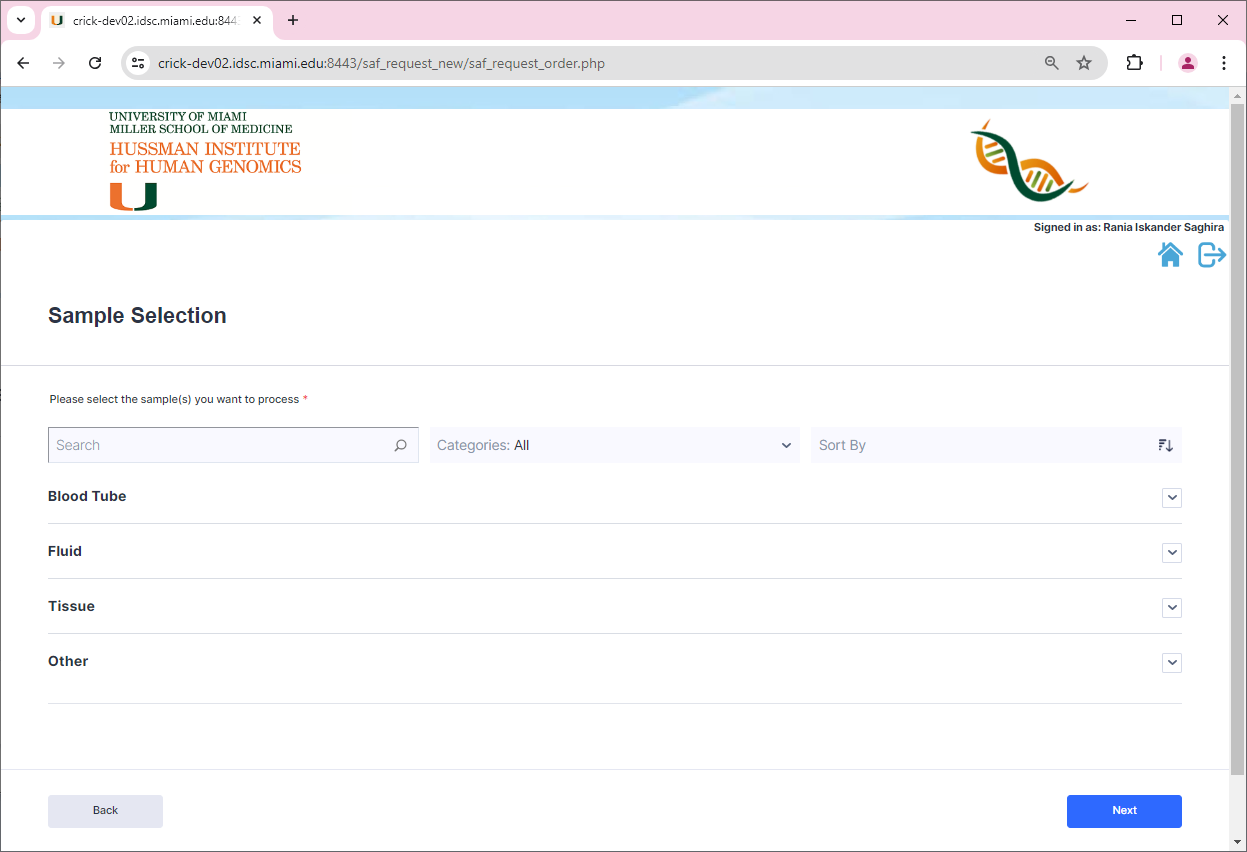
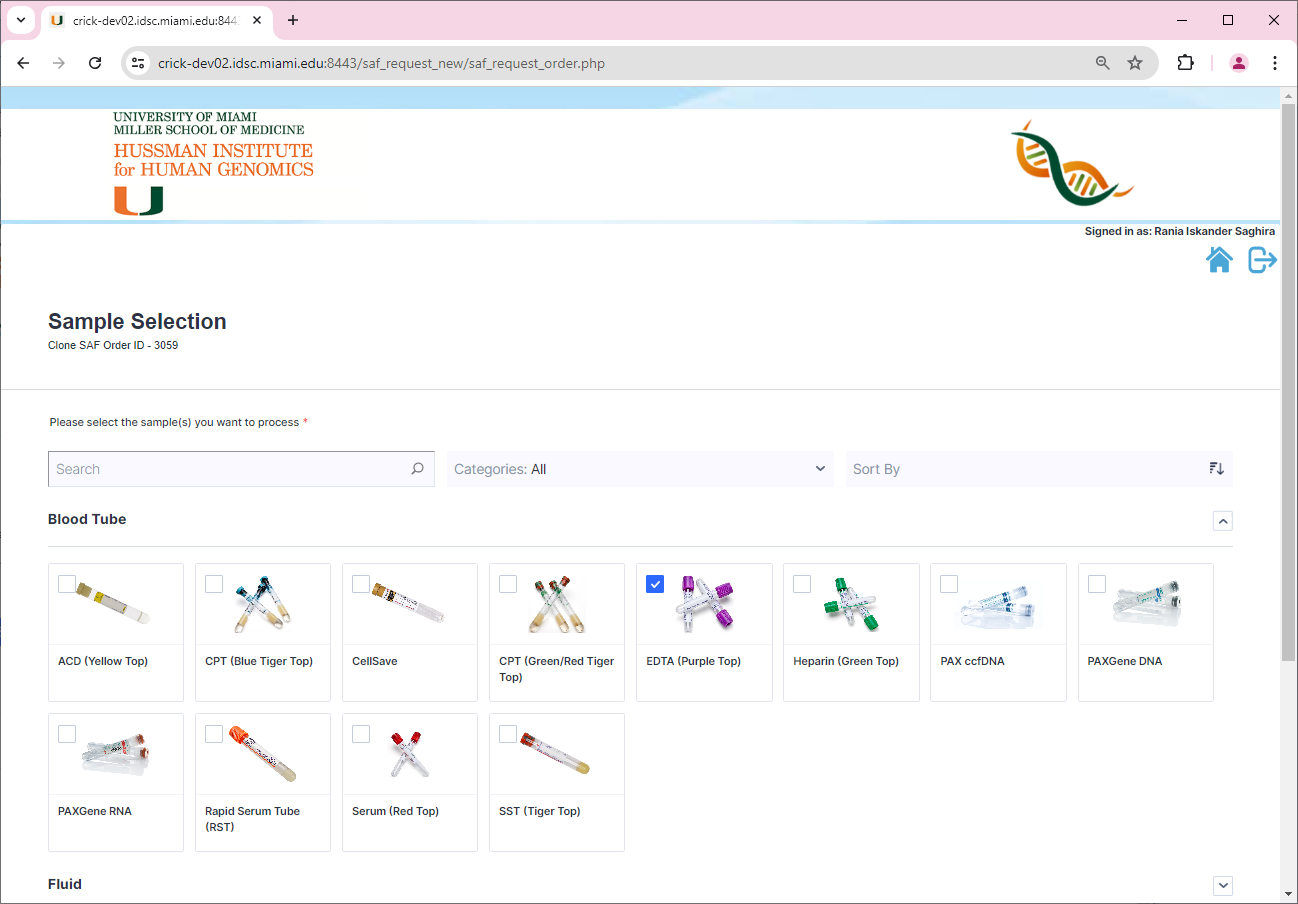
Sample Selection
This page will allow users to select the kits required. These are categorized into 4 groups. Blood Tube, Fluid, Tissue and Other
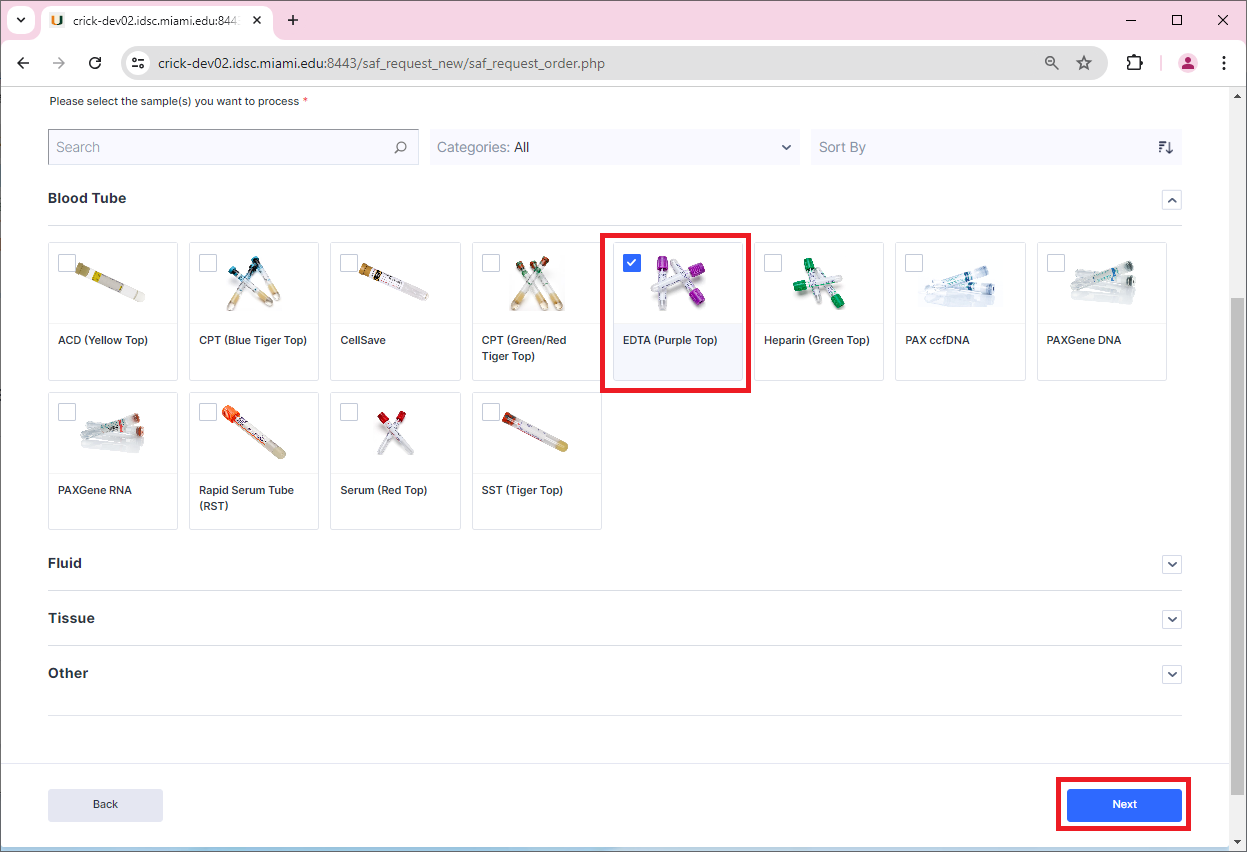
Once the user has selected the kits they can click on the Next button to specify the processing instructions. In the example below the user is requesting blood EDTA tubes.
Sample Processing Instructions
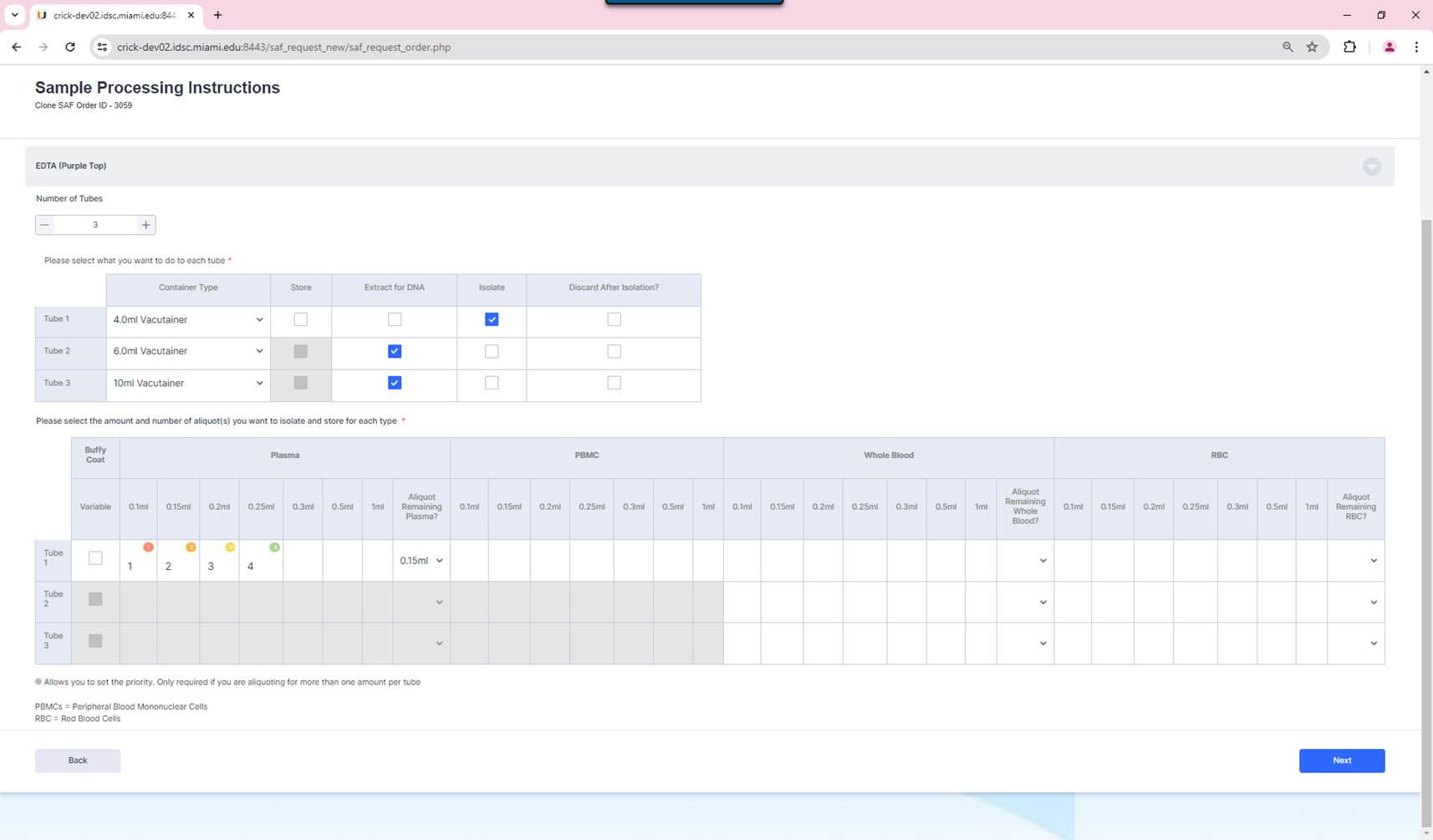
The next page, will allow users to specify how many tubes and what processing instructions should applied to each tube for each category
Expanding EDTA (Purple Top) will allow users to specify how many tubes they would like to request
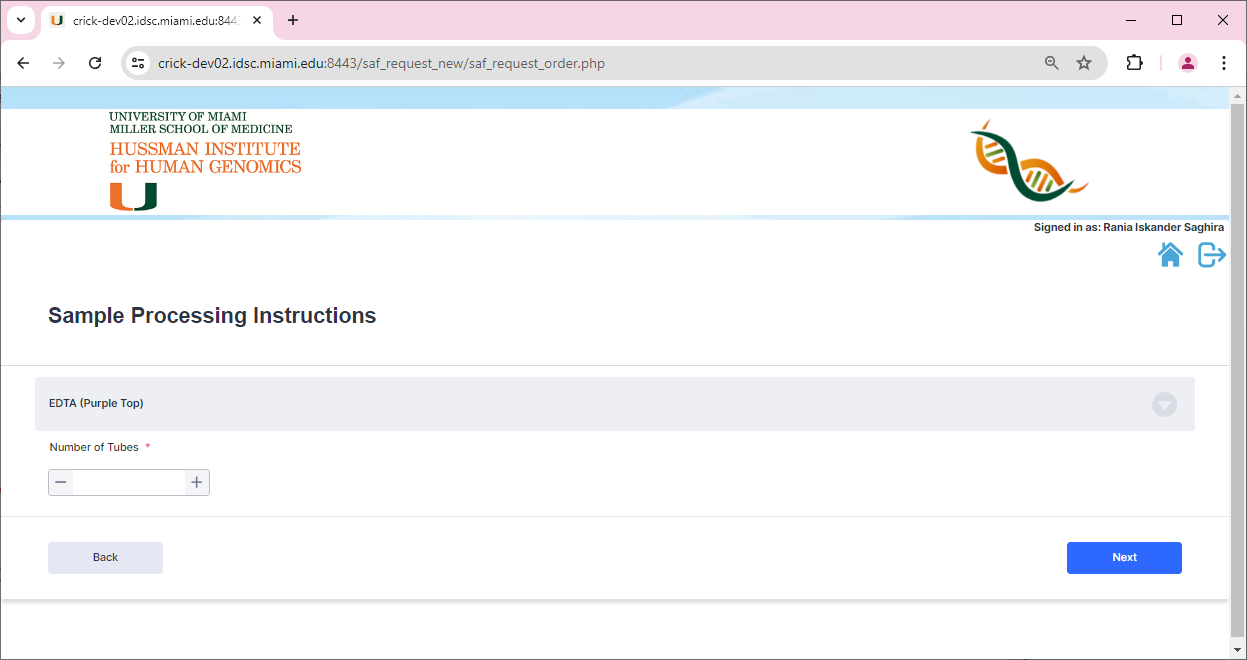
Based on the number of tubes requested, the user can specify the container type and how the sample has to be processed.
Table 1 - Tube Type and Processing
Container Type: Size of the tube requested
Store: Select this if the user wants to store the sample
Extract for DNA: This should be selected if the users wants to extract DNA from the sample. Note that selecting this will not allow for Buffy Coat, Plasma and PBMC isolation
Isolate: Select this option when you are planning on Isolating and aliquoting the blood tube. This applies to Buffy Coat, Plasma, PBMC, Whole Blood and RBC.
Discard after Isolation?: Select this option if you would like to discard the blood tube content after Isolation.
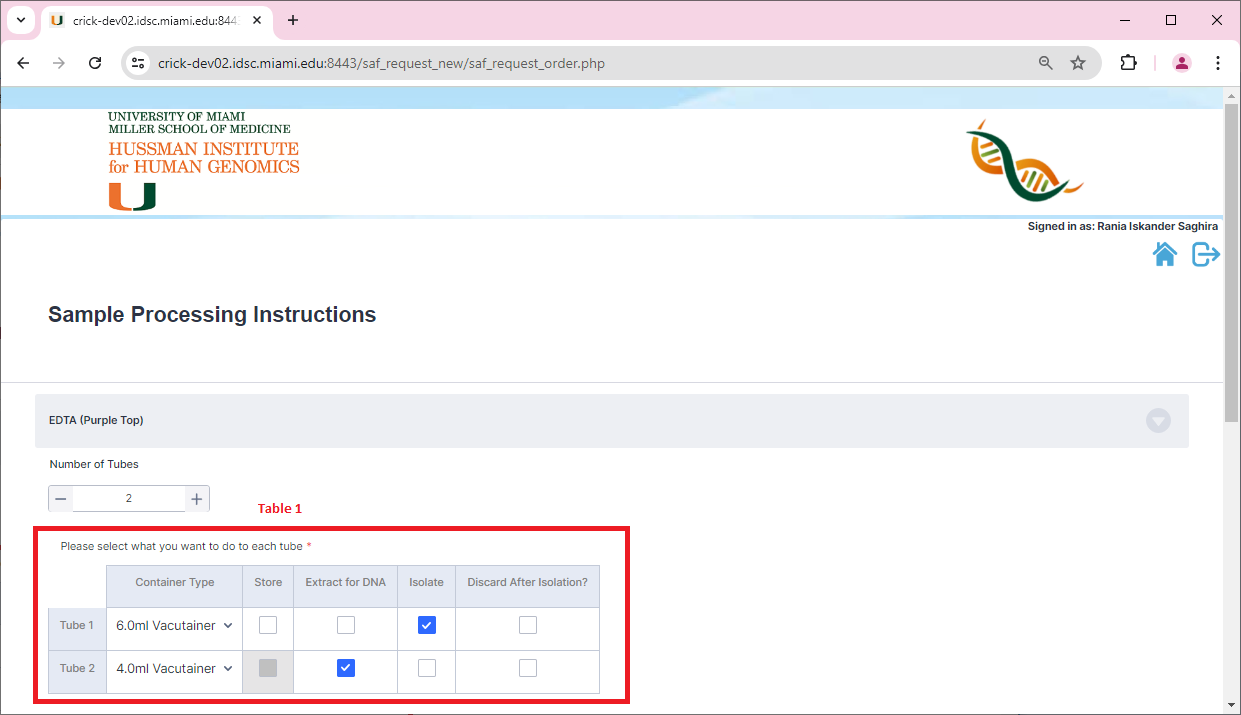
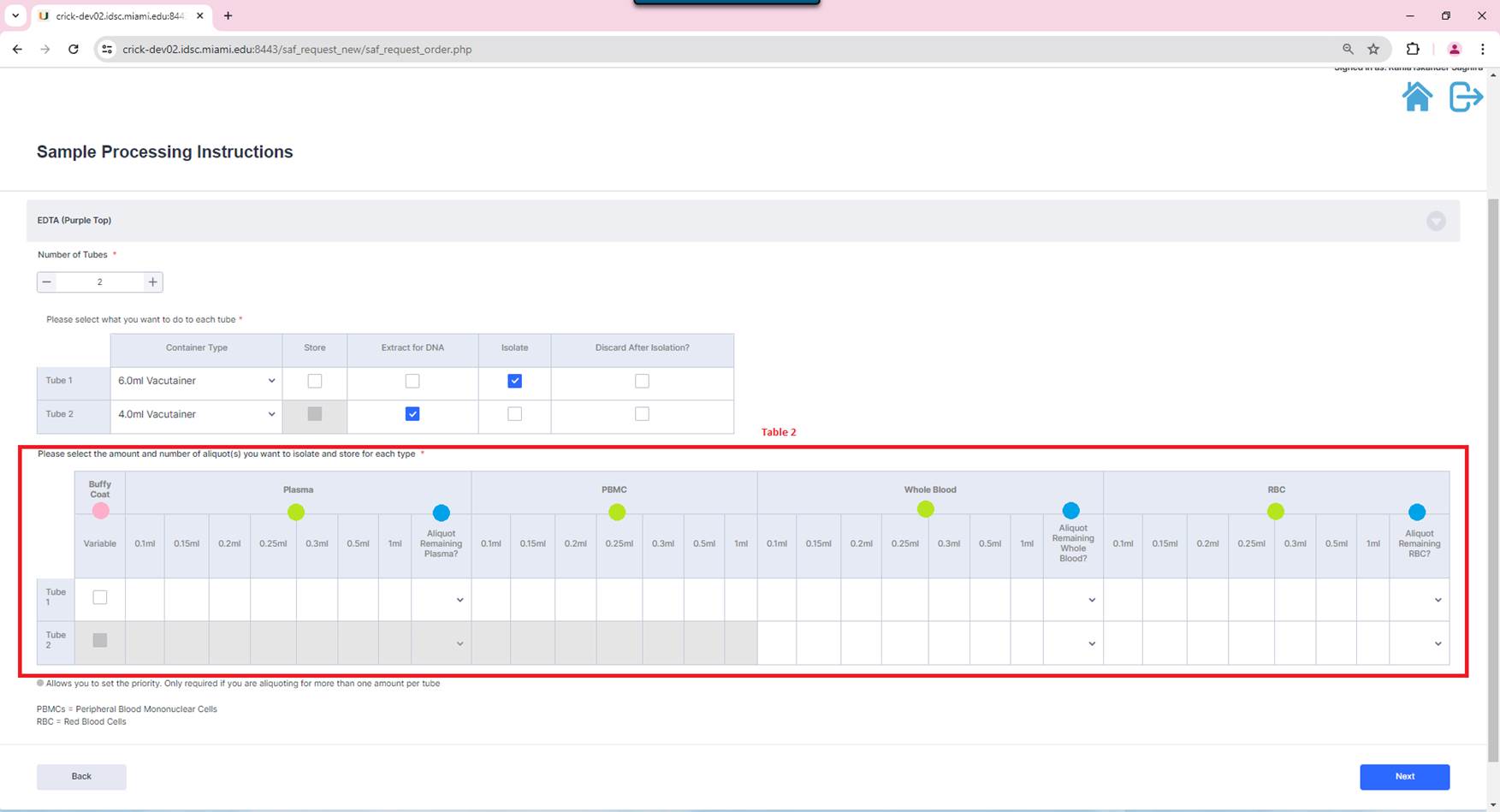
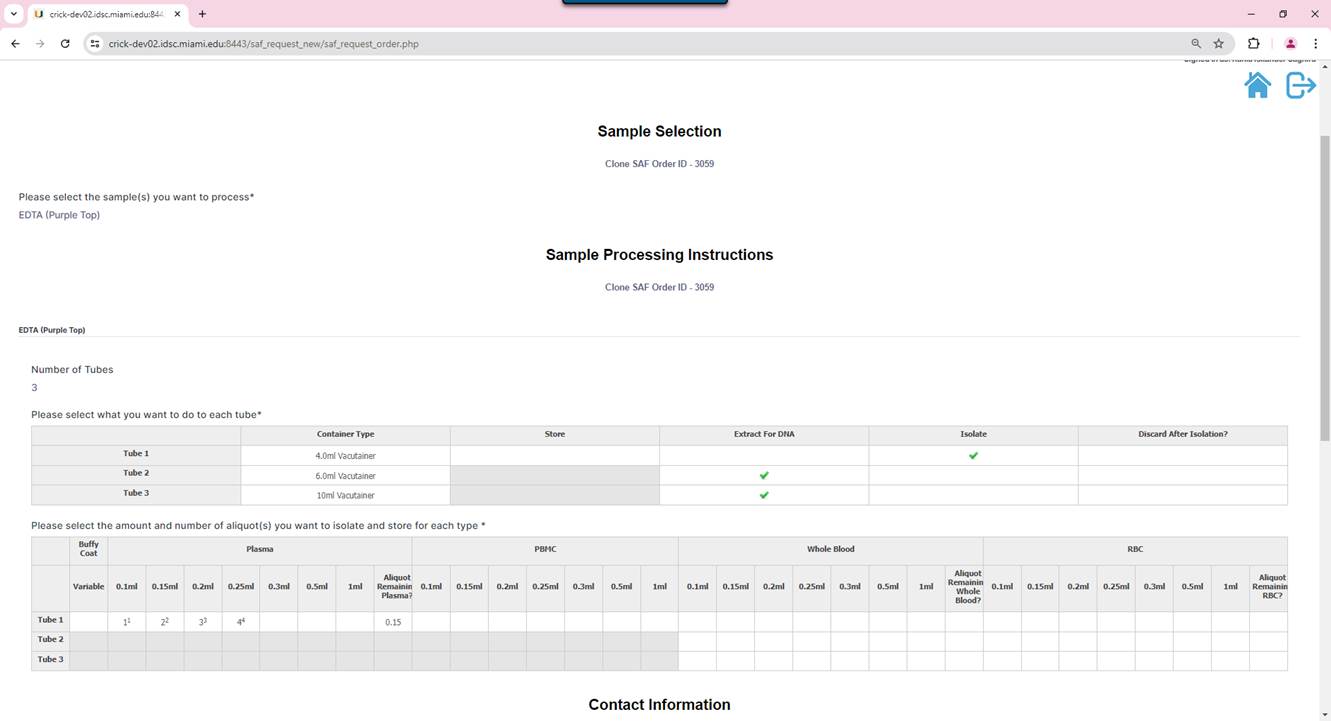
Table 2 - Isolate and Aliquot
If the users select Isolate for one of the tubes, table 2 will appear as shown in the example below. This table has the isolation options for the selected tubes, along with the aliquot amounts for splitting each option.
 Buffy Coat: Select this option if you want to isolate
buffy coat
Buffy Coat: Select this option if you want to isolate
buffy coat
 Plasma/PBMC/Whole Blood/RBC: For each one of these
options, the user can specify how many aliquots they would like per set amount
(0.1ml, 0.15ml, 0.2ml, 0.25ml, 0.3ml, 0.5ml and 1ml)
Plasma/PBMC/Whole Blood/RBC: For each one of these
options, the user can specify how many aliquots they would like per set amount
(0.1ml, 0.15ml, 0.2ml, 0.25ml, 0.3ml, 0.5ml and 1ml)
 Aliquot
Remaining Plasma/Whole Blood/RBC: In cases where the user would like to continue
aliquoting the sample until the amount is exhausted. They can use this dropdown
to specify in what amount the remaining sample will be aliquoted.
Aliquot
Remaining Plasma/Whole Blood/RBC: In cases where the user would like to continue
aliquoting the sample until the amount is exhausted. They can use this dropdown
to specify in what amount the remaining sample will be aliquoted.
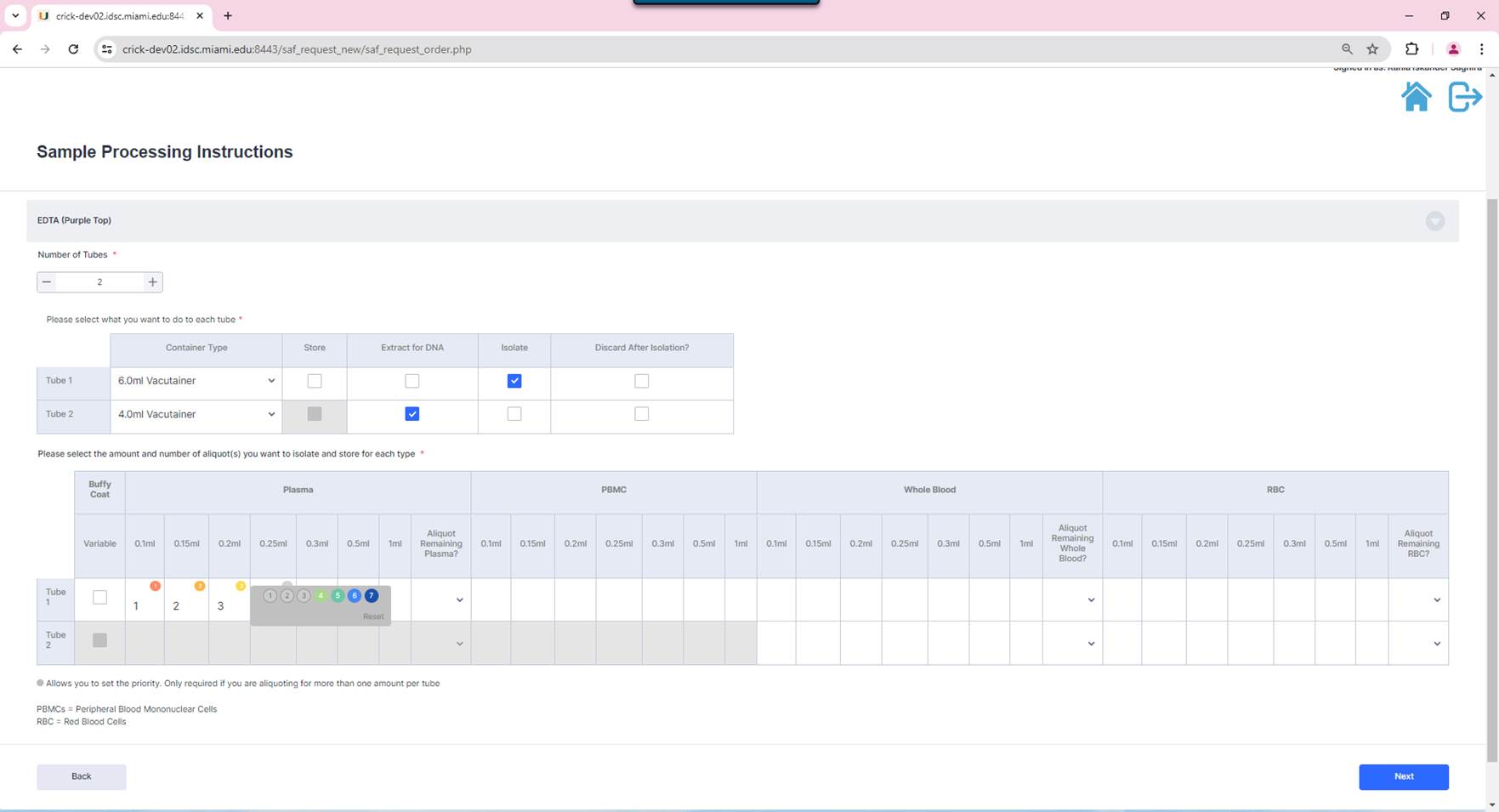
Setting Priority
The user can
also specify the priority in which they would want the aliquot amounts to be
extracted. As soon as the user enters the aliquot number for each amount and
small grey circle  will show at the top of the
number, allowing the user to hover it and select the priority number.
will show at the top of the
number, allowing the user to hover it and select the priority number.
Please note that if you are only aliquoting one amount per category (Plasma, PBMC, Whole Blood and RBC) you do not need to set this field.
Once the user has completed all the tube instructions. They can click on next to fill out the contact information.
Contact Information
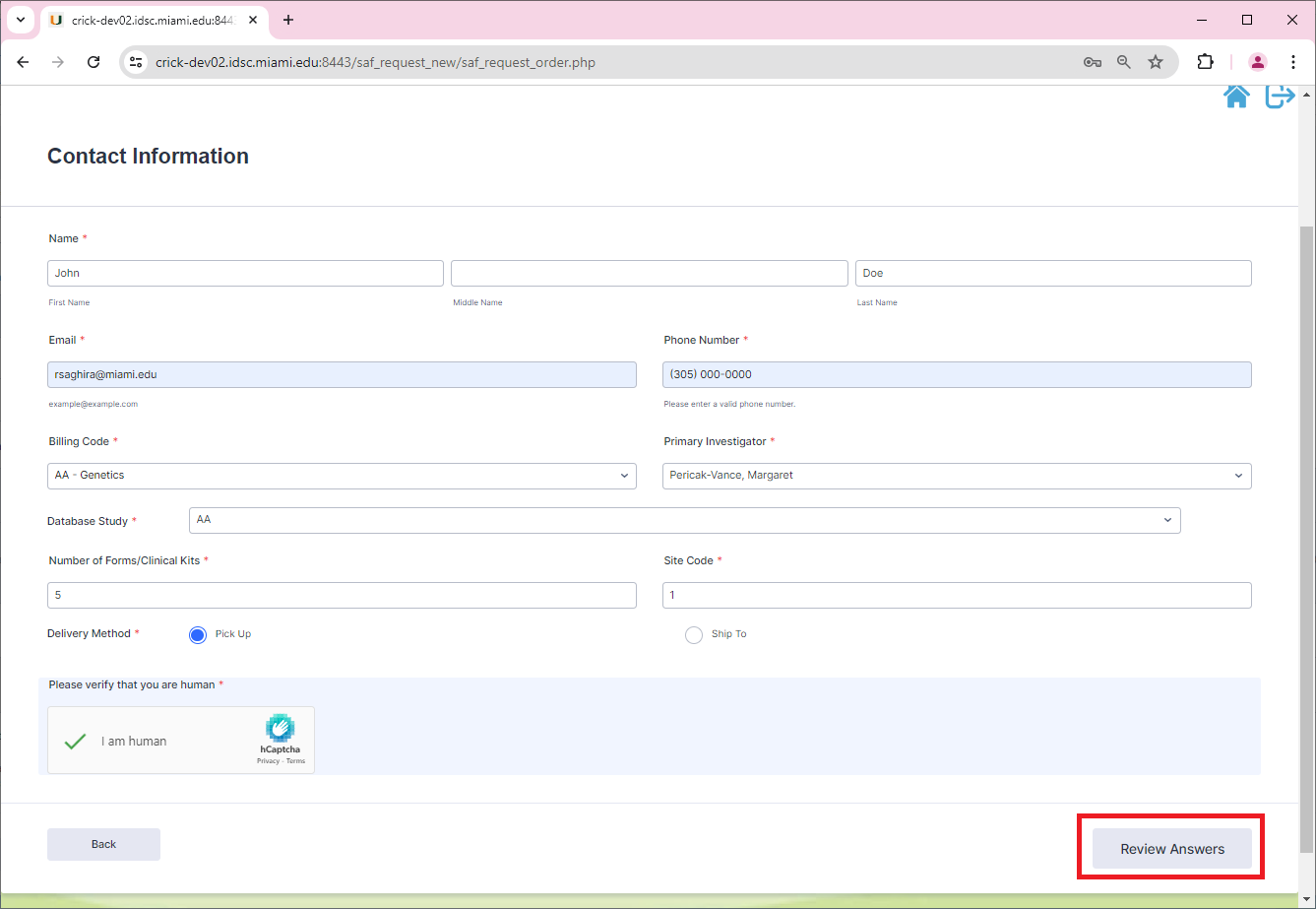
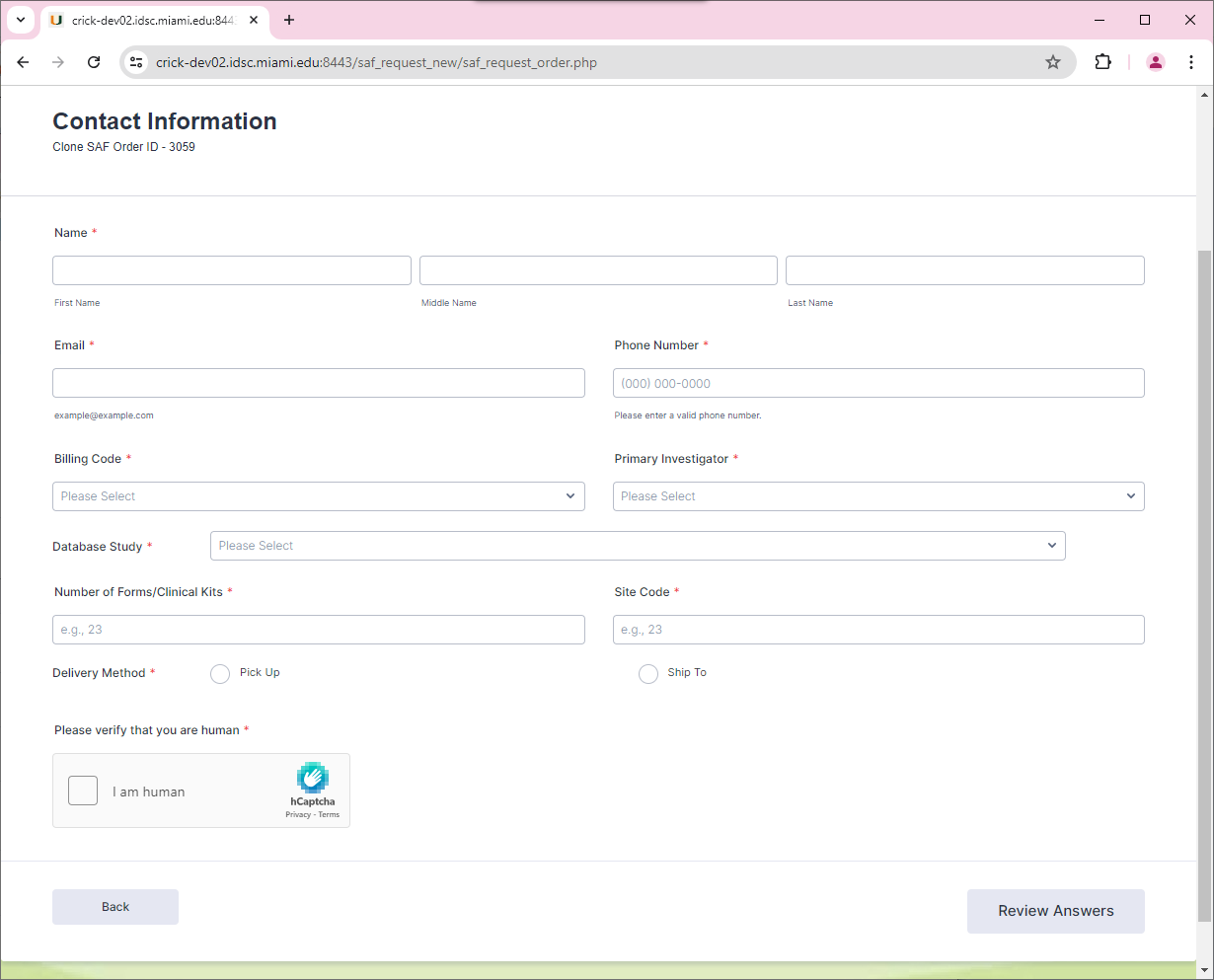
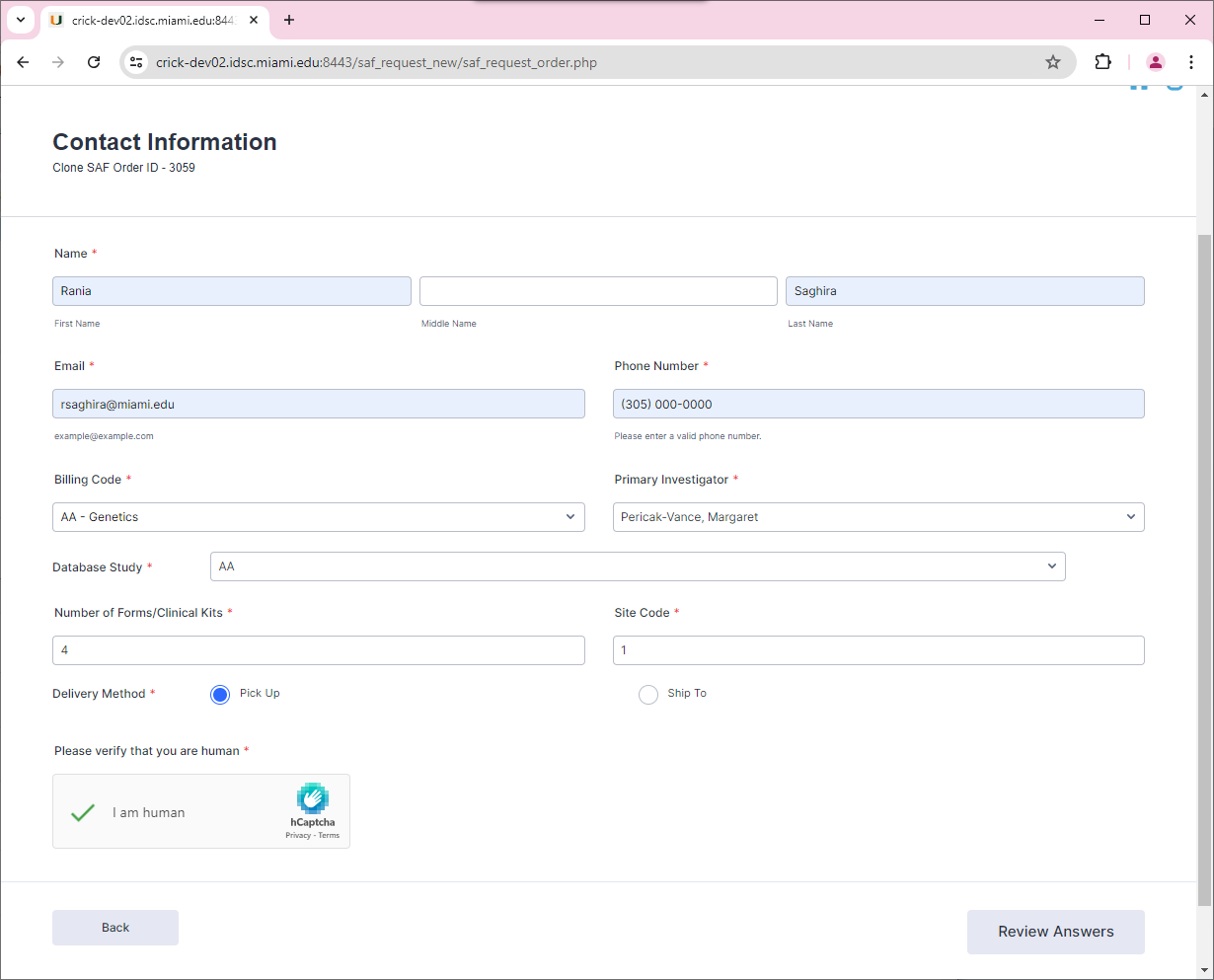
This page will prompt the user for the contact information such as:
Name, email, phone number, billing code, PI, database study, number of forms/clinical kits, site code and delivery method. Once that information has been filled out the user will verify that they are human via captcha, and proceed to review the answers
Review Answers
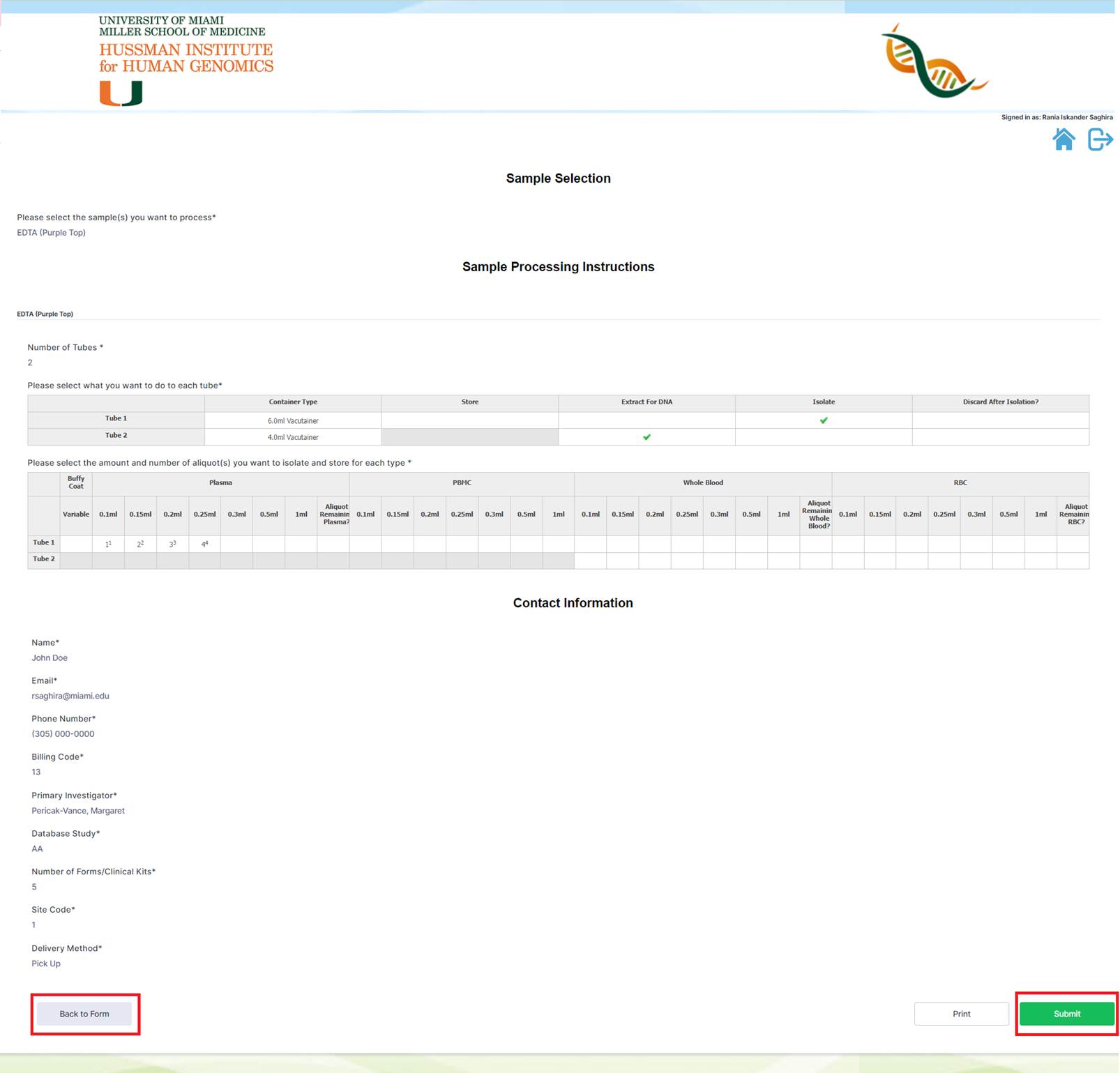
The review answers page will display all the user selection for one last review before submitting the request. If the users would like to make changes, they can click on the ‘Back to Form’ button, otherwise the user can click on ‘Submit’ to send the request
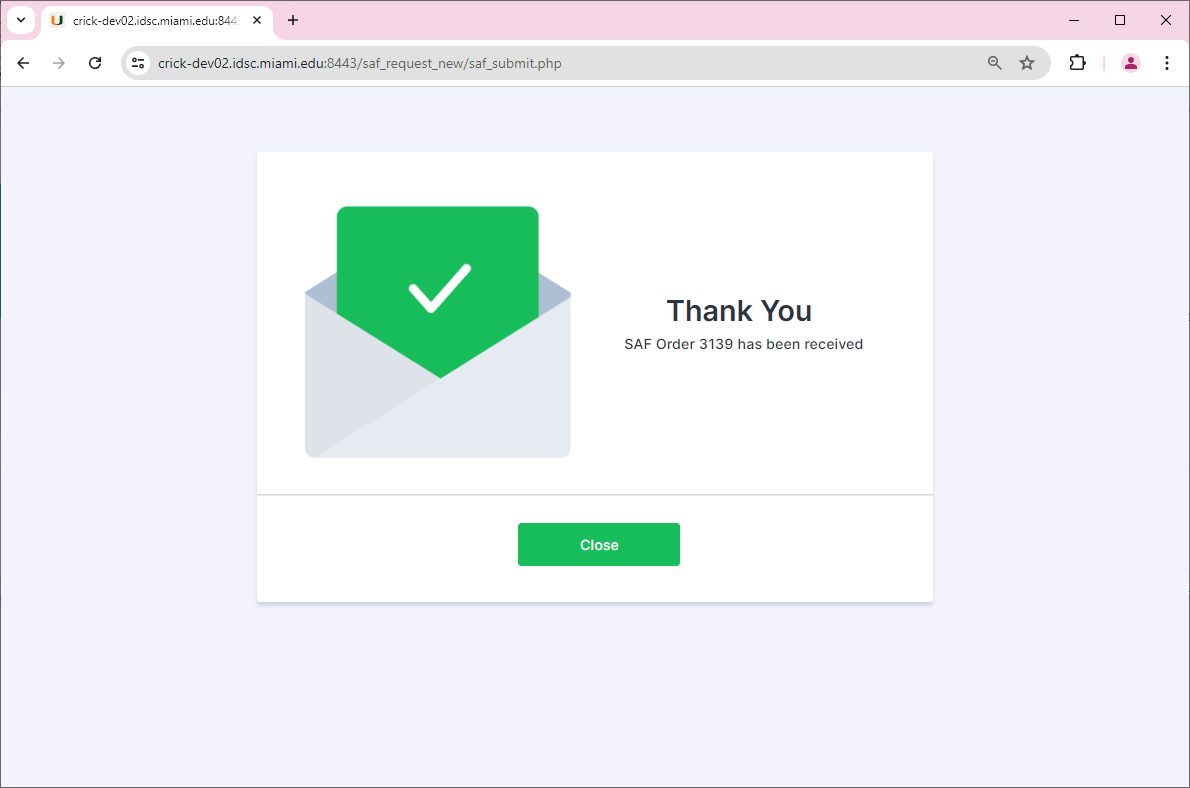
Once the order has been submitted. The screen will display a thank you page along with the new SAF Order number.
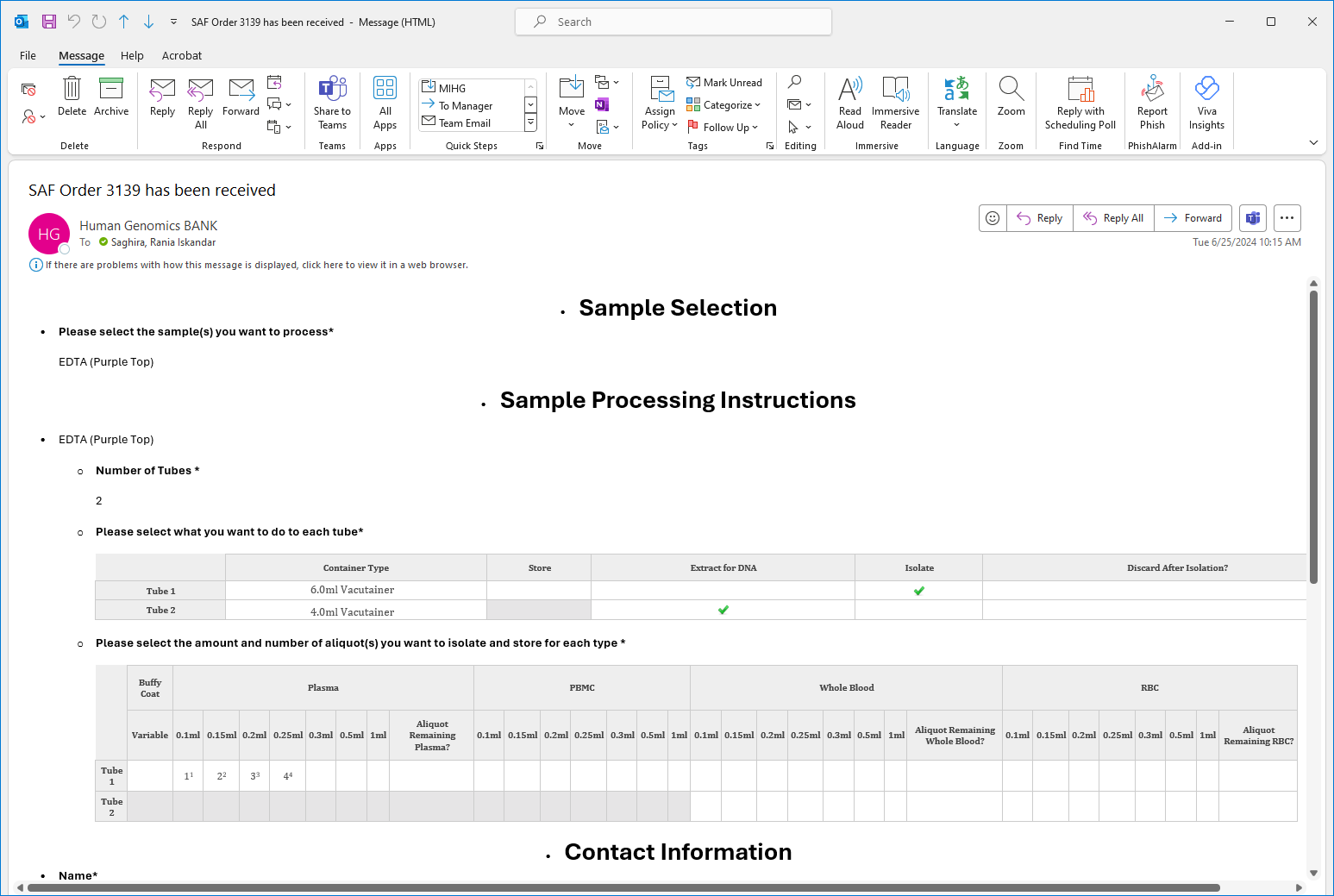
In addition to this an email will be sent to the user will the Order information.
Clone
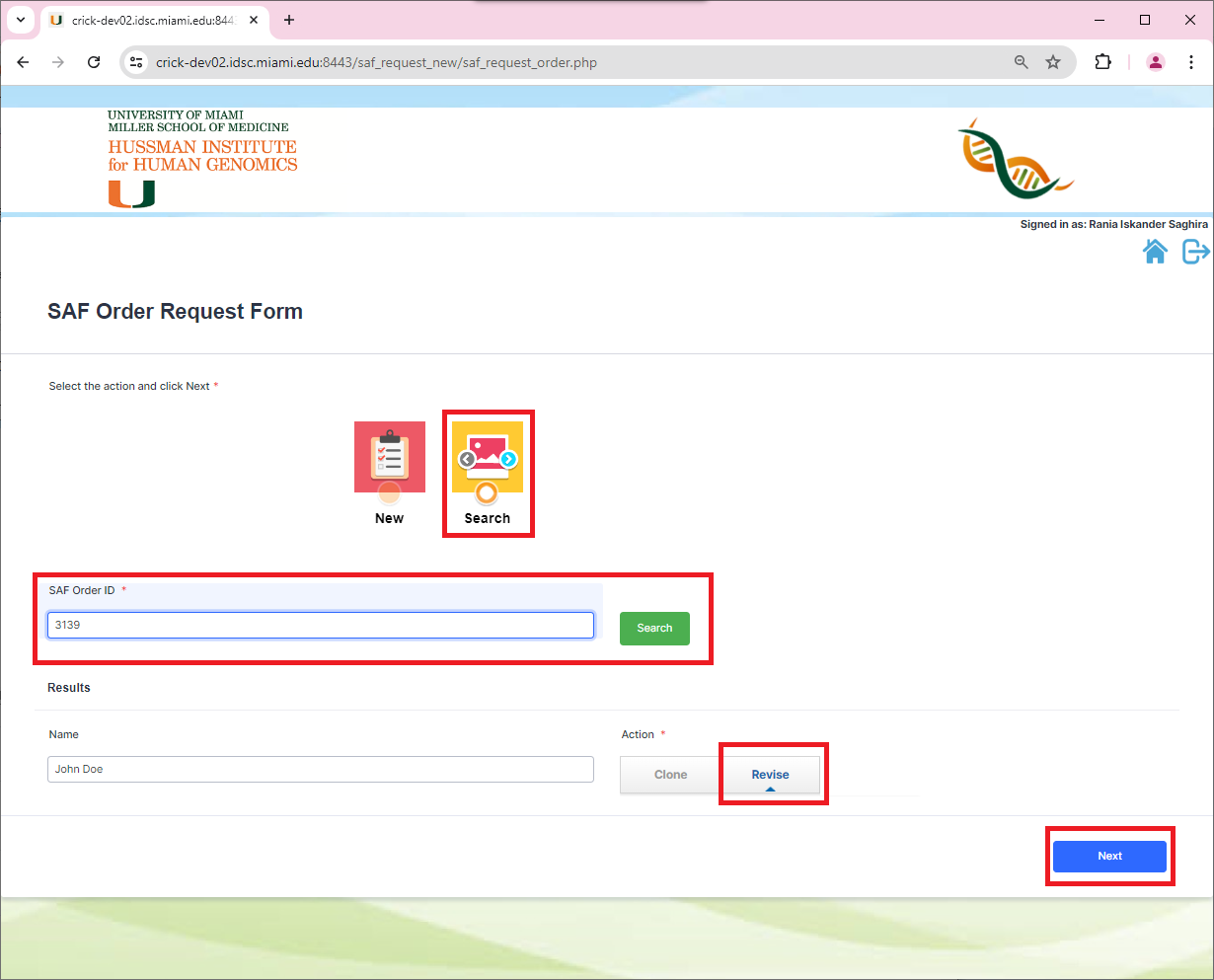
Users will now have the ability to clone an existing SAF Order when submitting a new request. In order to do so, go to the main page and click on search. The SAF Order ID field will show up.
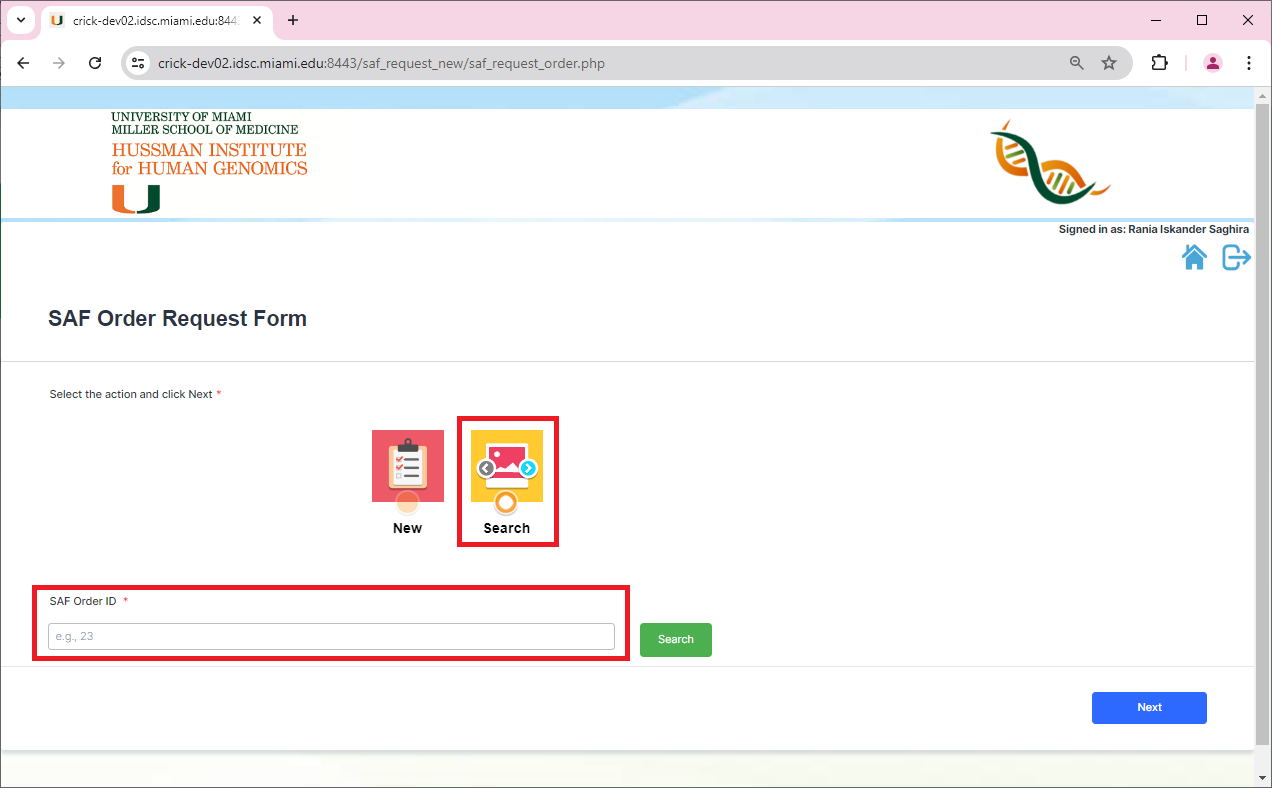
Type in the SAF Order ID that you want to clone and click ‘Search’
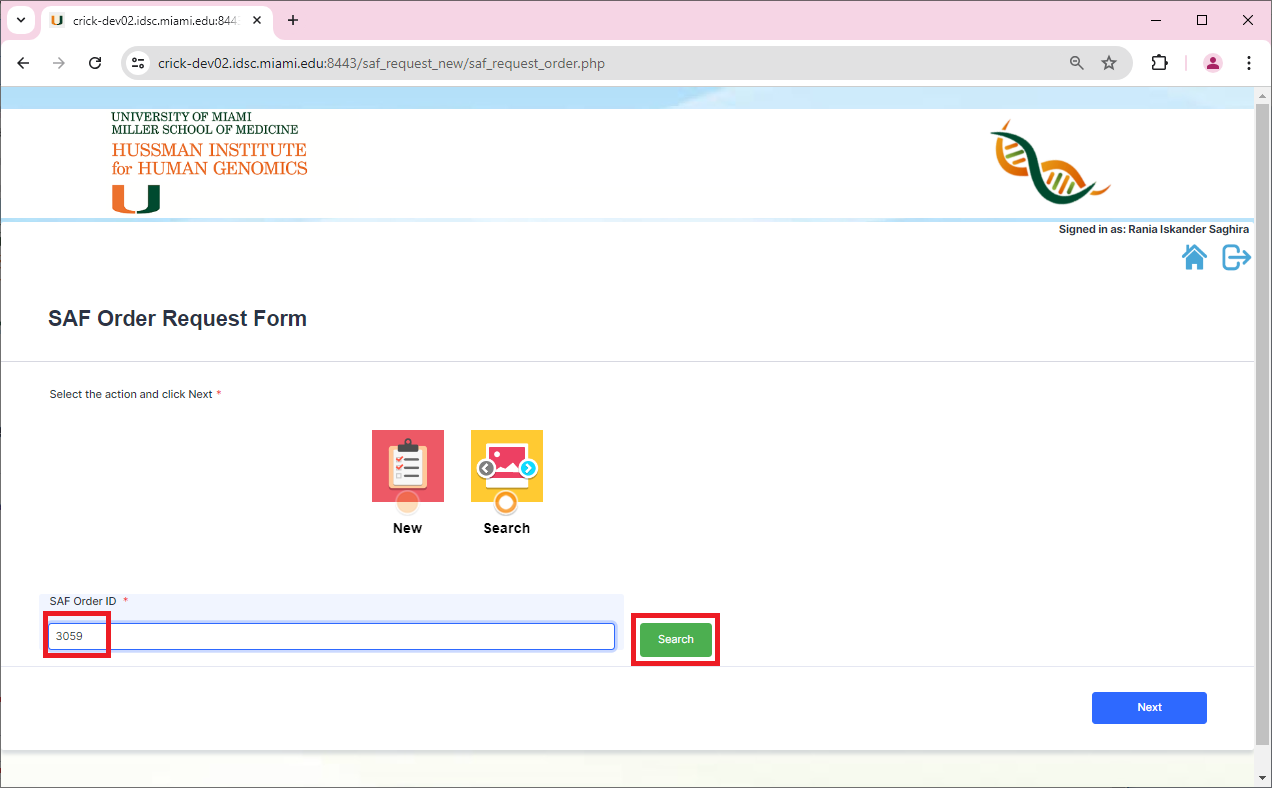
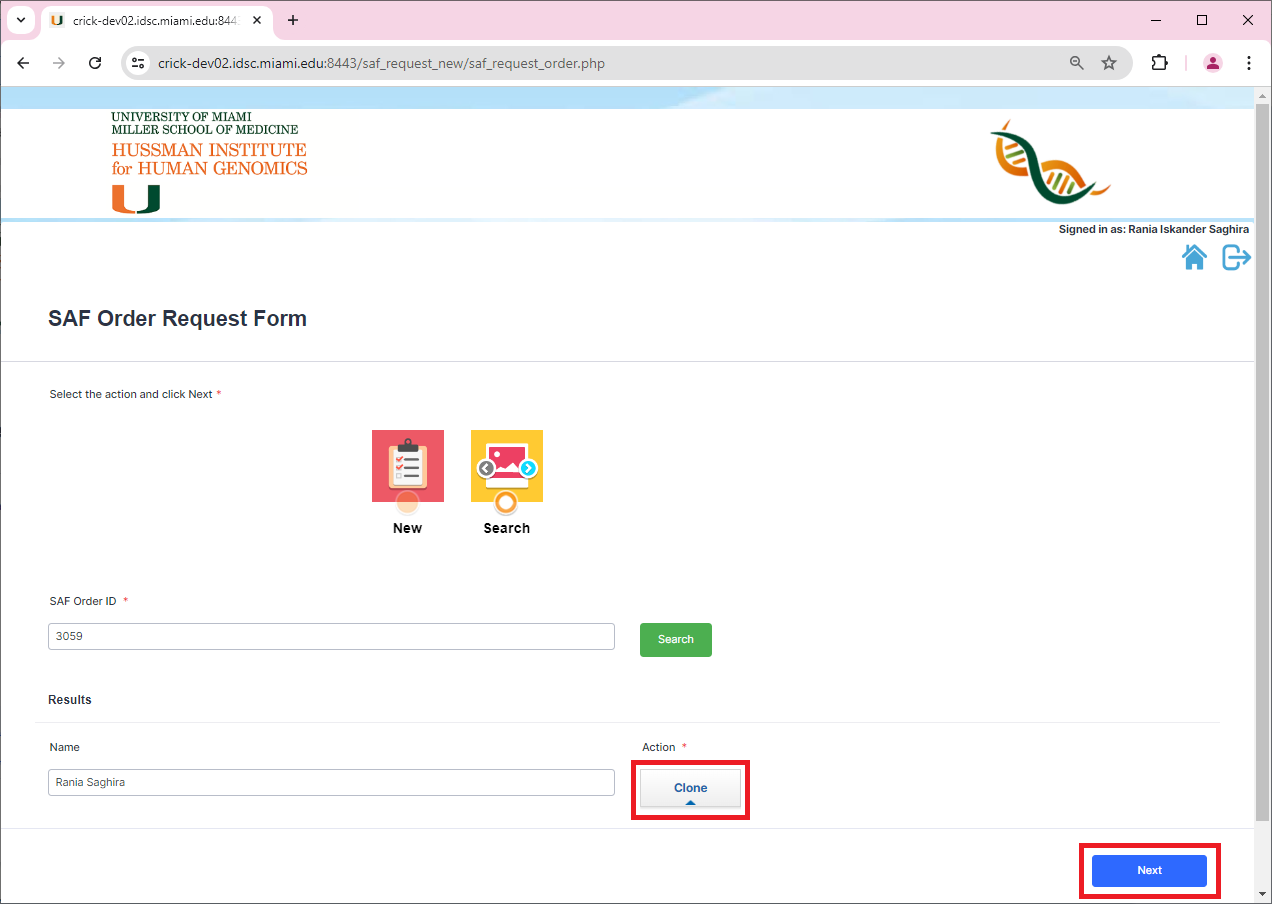
Search will display the contact information name of the person that is listed for this order and the actions allowed. In this case you can only clone this order. User can select ‘Clone’ and the click on ‘Next’ to continue.
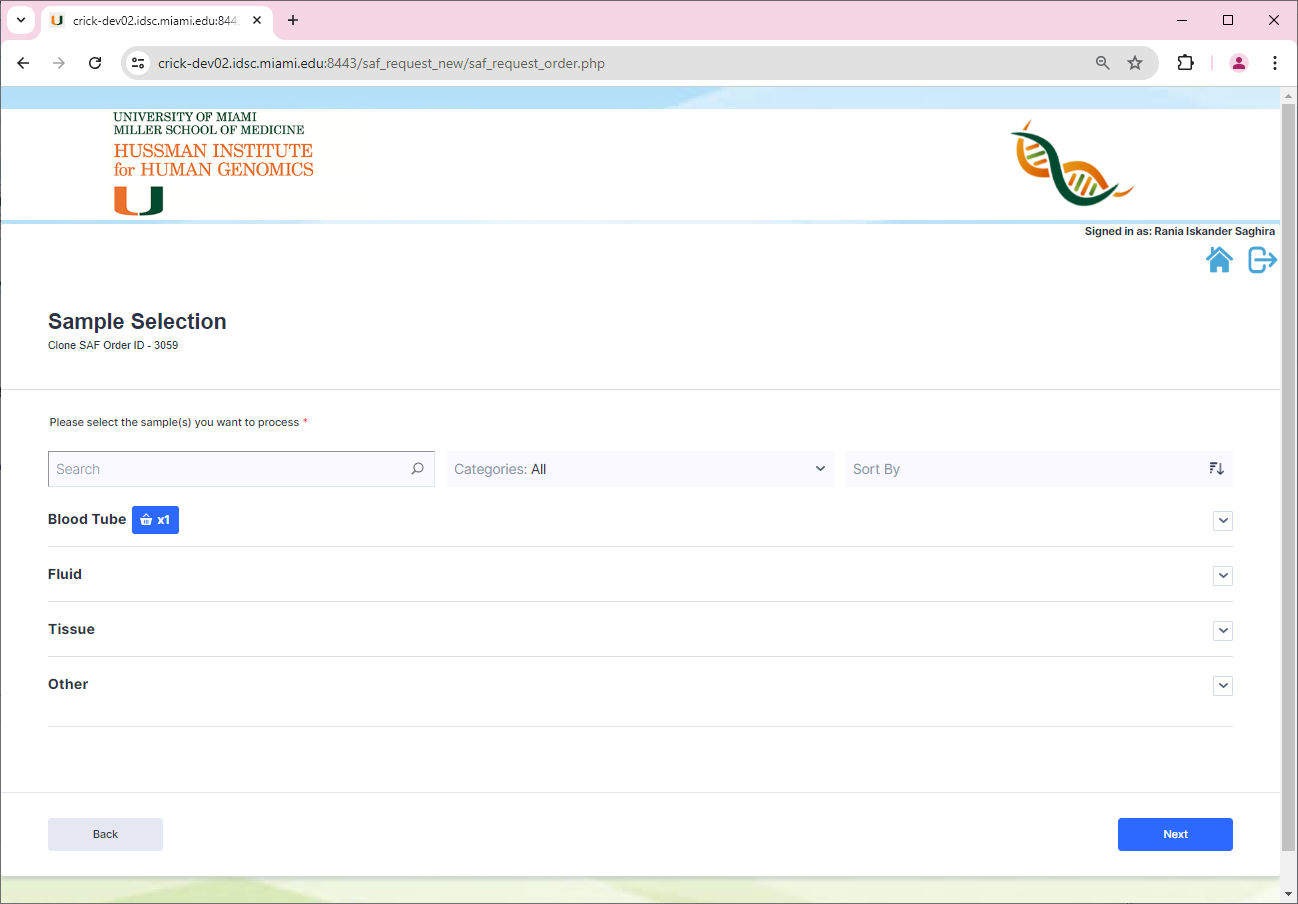
The sample selection will display what kits are selected for this cloned order. The user can make changes to add or remove kits. Once the user is satisfied with the sample selection, they can move on to the new next page.
In the sample selection processing instructions page, the user can see all the information from the cloned order copied over. The user will review this information, make any necessary changes, then click on ‘Next’ to continue to the next page.
The contact information page will not be prepopulated. Since this is a cloned order, the contact information will differ from the original one.
Once the contact information is filled out the user can review the answers prior to submitting the request.
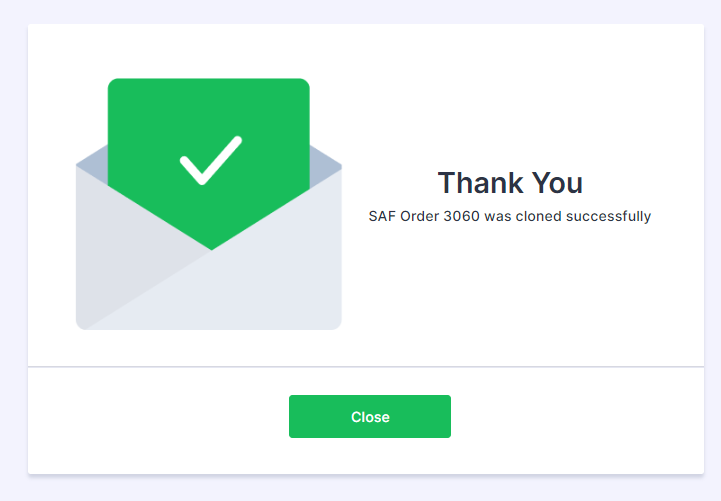
Once the request is submitted, the thank you page will appear with the new cloned SAF Order number. An email will also be sent to the contact information email.
Revision
There are instances in which the user will need to revise an existing SAF Order to make some changes. To do this, the user will send an email to hihgbank@med.miami.edu with the SAF Order ID specifying that they need to revise the order.
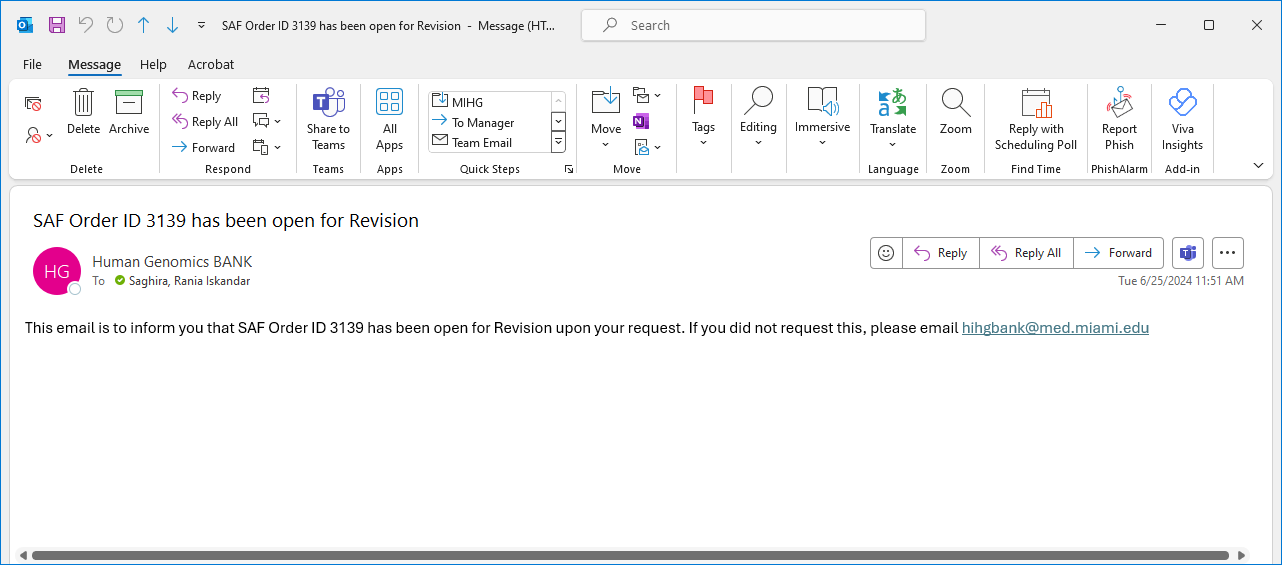
The HIHG bank personnel will review the order and open it for revision. As soon as this is done, an email will be sent to the SAF Order contact information email specifying that the order has been opened for revision.
The user can now search for this order and revise it.
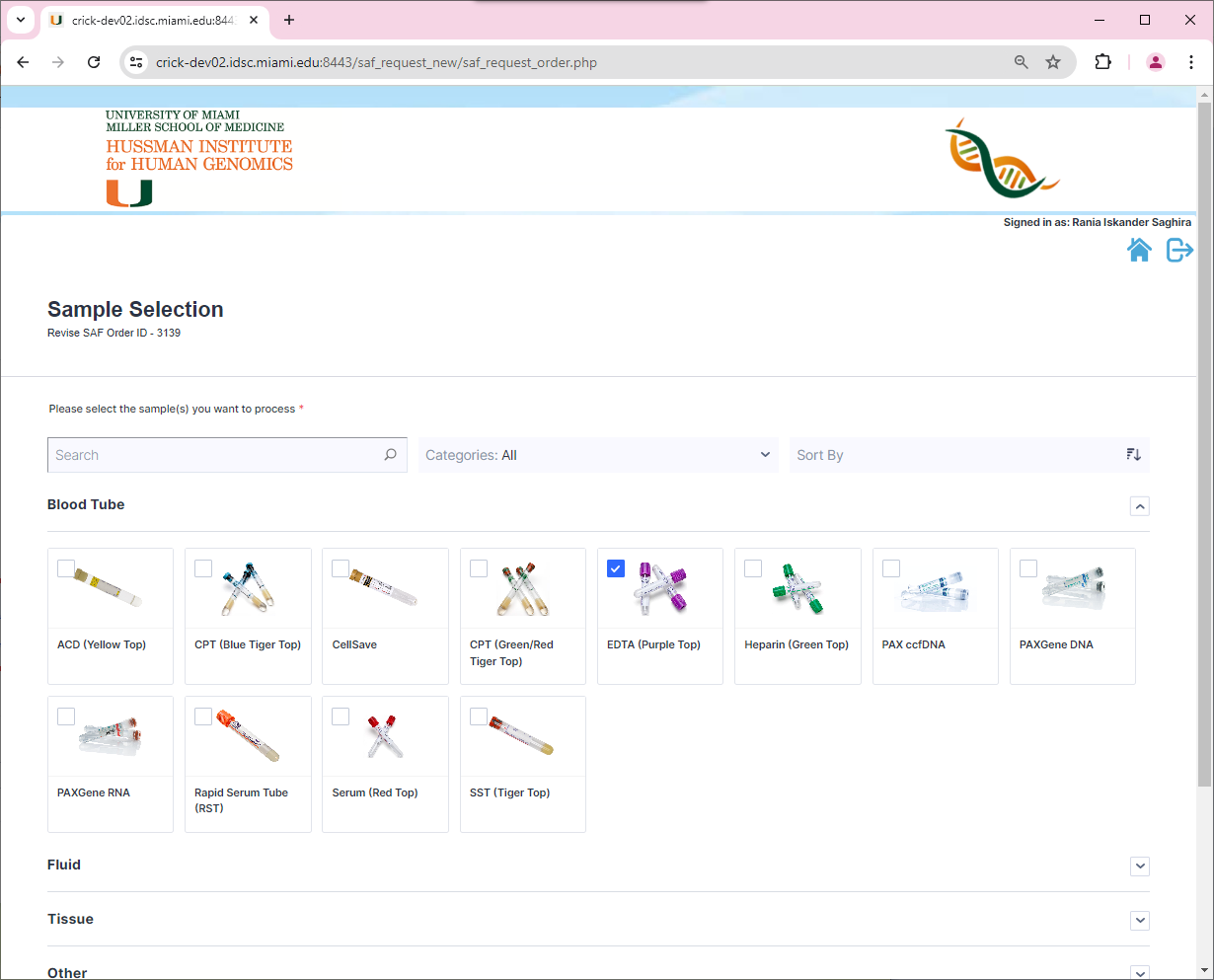
Sample selection page will display the selected kits and allow user to select new ones or deselect existing ones.
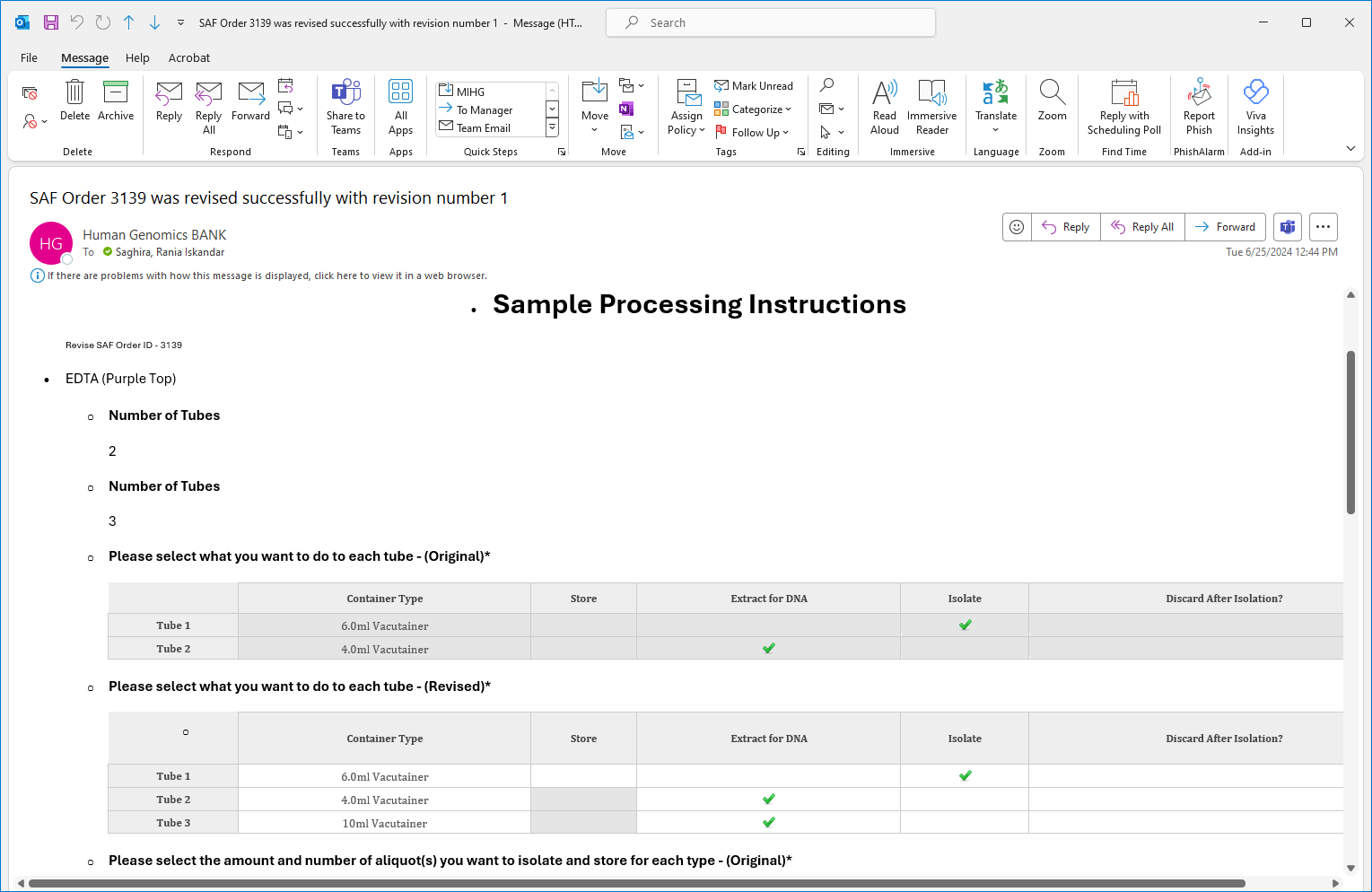
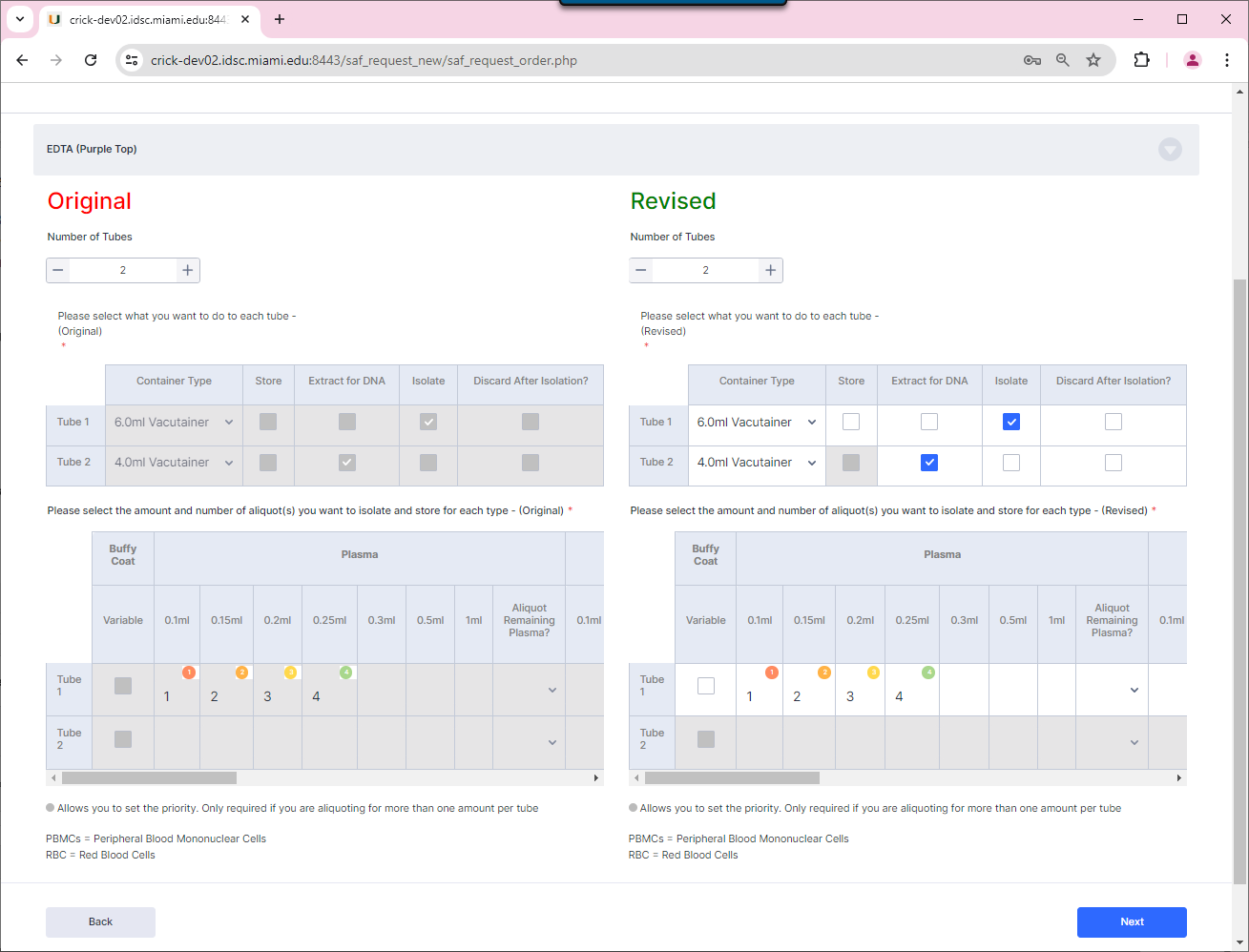
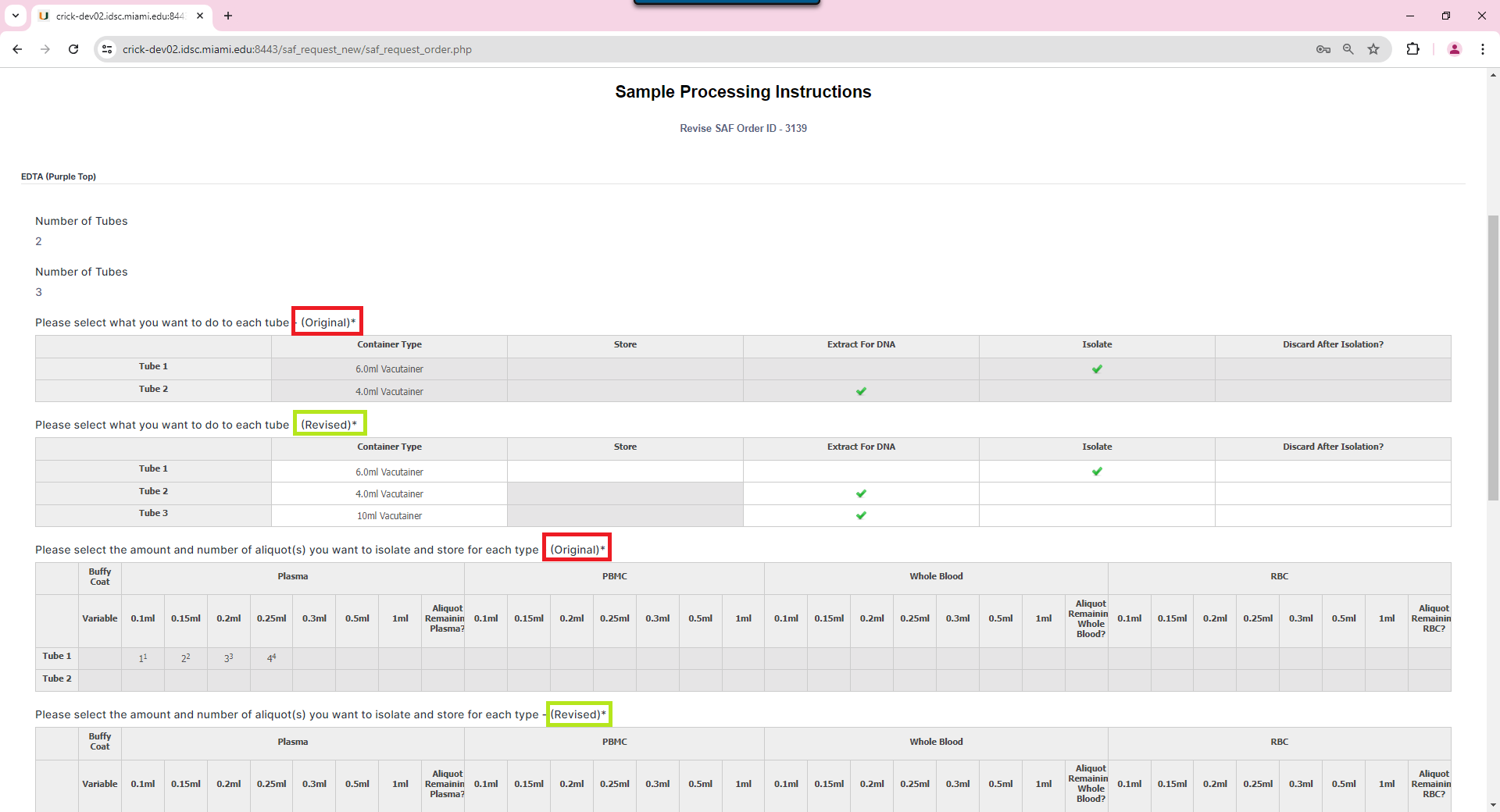
The sample processing instructions page will display the original instructions for each tube next to the revised one. The user can edit the revised ones to make changes.
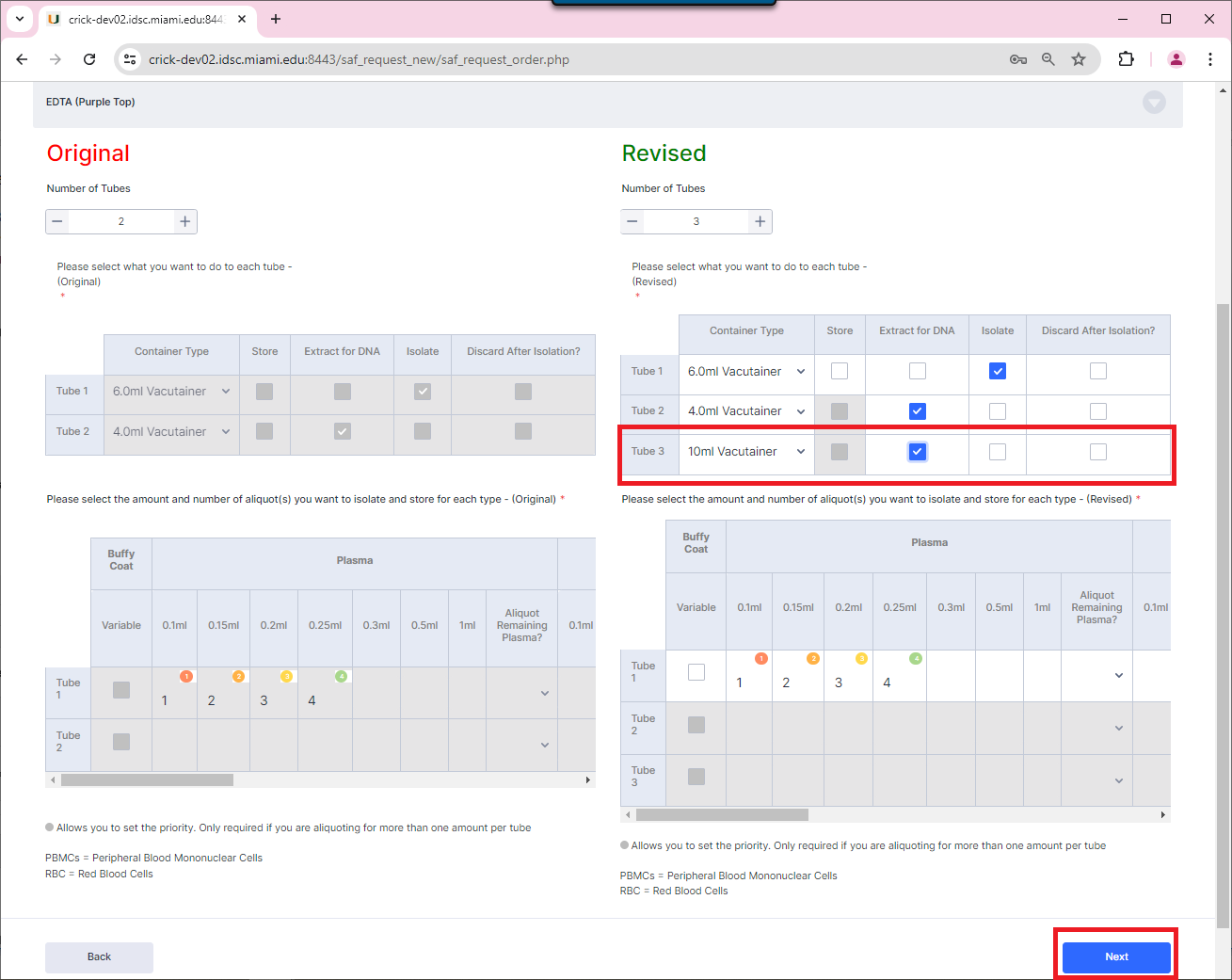
In the example below the user added a new 10ml Vaccutainer tube for DNA extraction. Once the user is satisfied with the changes, they can click on the ‘Next’ button.
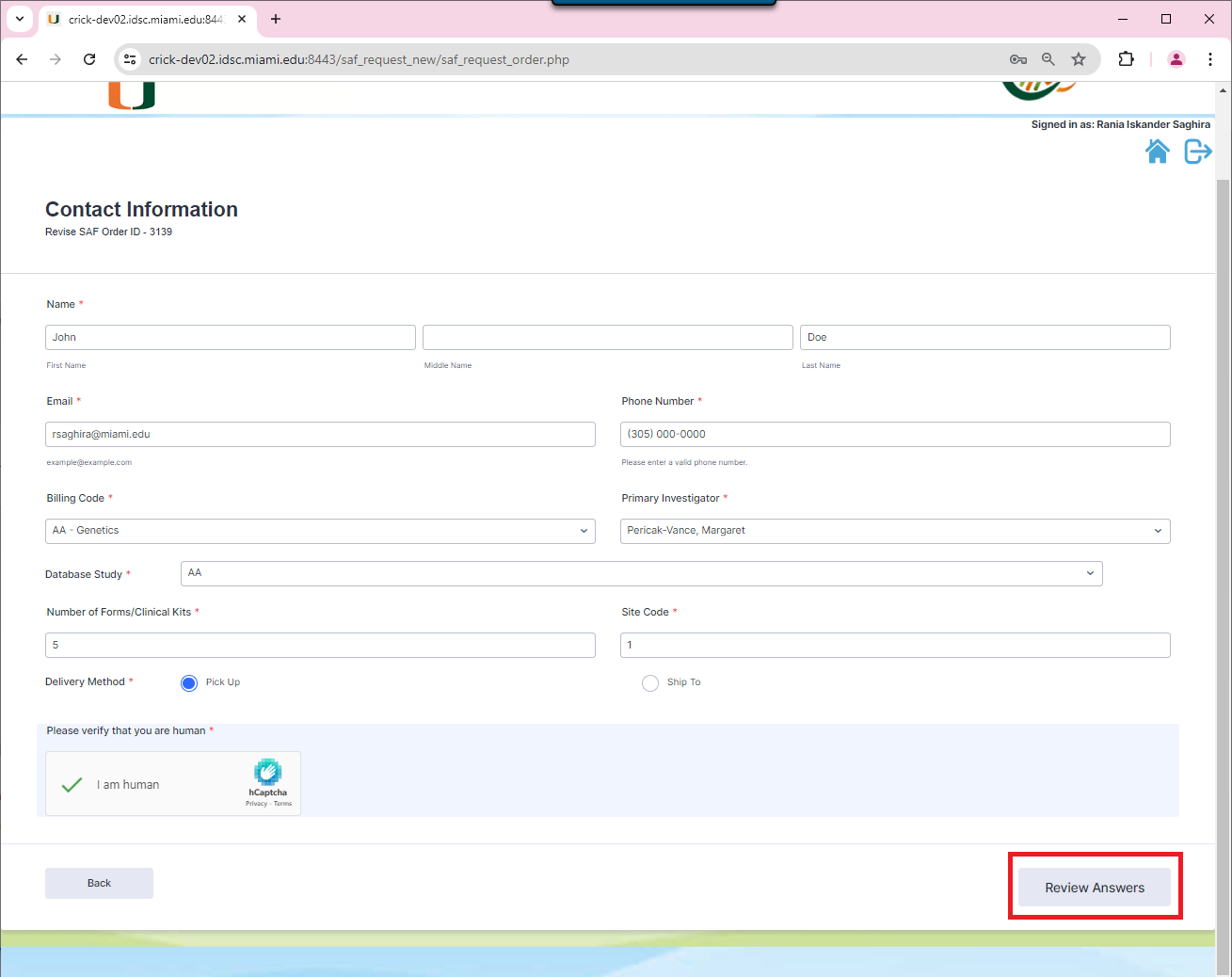
The following page will display the contact information. Since this is a revision, all the information will be prepopulated for the selected order. The user can review and make changes to all the fields except for the Number of Forms/Clinical Kits.
The review answers page will display the original vs the revised instructions.
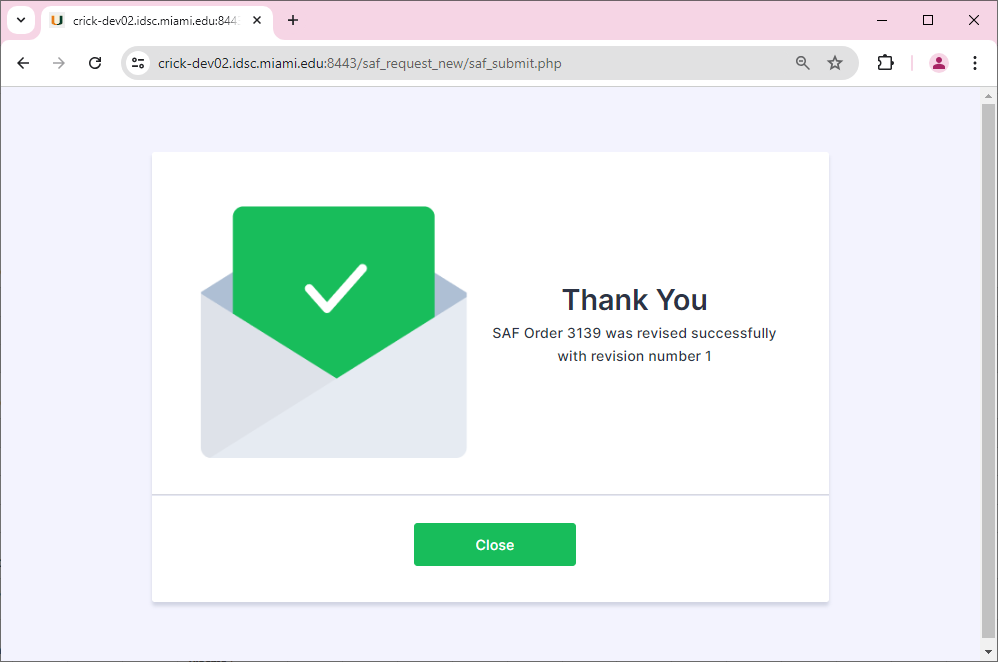
Upon reviewing and submitting the revised order, a thank you page will display with the revision number for this order.
In addition to this an email will be sent out to the SAF Order contact information email.